Ray History Server with KubeRay#
This guide covers how to set up and configure the Ray History Server with KubeRay.
The Ray History Server powers the Ray dashboard’s backend. For information about how to use the Ray dashboard, see Ray dashboard.
Note
The Ray History Server is in beta and ready for testing. We welcome feedback and contributions from the community.
What is the Ray History Server?#
The Ray History Server is a KubeRay component for accessing and debugging Ray workload resources after they terminate. It supports RayCluster, RayJob, and RayService.
The Ray History Server has two parts:
Collector: runs as a sidecar container on Ray nodes and exports events and logs to object storage, compressing event streams before upload.
History Server: a standalone deployment that serves the Ray dashboard API. It parses a stored cluster session only when you open that session, so memory use stays bounded and startup time doesn’t grow with the number of stored sessions.
Prerequisites#
This guide requires the following:
A Kubernetes cluster. This guide uses GKE and
gcloud, but the steps apply to other Kubernetes distributions.Helm, installed and updated.
KubeRay v1.7 or later.
Ray 2.55 or later.
Create a GKE cluster with Workload Identity enabled#
If you don’t already have a Kubernetes cluster, create a standard GKE cluster with Workload Identity enabled:
export PROJECT_ID=<PROJECT_ID>
export REGION=<REGION>
export GKE_CLUSTER_NAME=<GKE_CLUSTER_NAME>

gcloud container clusters create ${GKE_CLUSTER_NAME} \
    --region=${REGION} \
    --workload-pool=${PROJECT_ID}.svc.id.goog
Get cluster authentication credentials for kubectl:
gcloud container clusters get-credentials ${GKE_CLUSTER_NAME} --region=${REGION} --project=${PROJECT_ID}
Install the KubeRay operator#
Follow Install KubeRay operator to install the KubeRay operator from the Helm repository.
Configure Google Cloud Storage and Workload Identity permissions#
Configure Google Cloud Storage bucket access and Workload Identity permissions for your GKE cluster. See Create a Kubernetes service account.
Set up role-based access control (RBAC)#
Create the required ClusterRole and ClusterRoleBinding for the Ray History Server components:
export NAMESPACE=default
export KSA=<KUBERNETES_SERVICE_ACCOUNT_NAME>

kubectl apply -f - <<EOF
apiVersion: rbac.authorization.k8s.io/v1
kind: ClusterRole
metadata:
  name: rayclusters-reader
rules:
- apiGroups: ["ray.io"]
  resources: ["rayclusters"]
  verbs: ["get", "list", "watch"]
---
apiVersion: rbac.authorization.k8s.io/v1
kind: ClusterRoleBinding
metadata:
  name: historyserver-sa-binding
subjects:
- kind: ServiceAccount
  name: ${KSA}
  namespace: ${NAMESPACE}
roleRef:
  kind: ClusterRole
  name: rayclusters-reader
  apiGroup: rbac.authorization.k8s.io
EOF
History Server and collector images#
KubeRay publishes prebuilt container images for the History Server and the collector on Quay.io:
History Server:
quay.io/kuberay/historyserver:nightlyCollector:
quay.io/kuberay/collector:nightly
To build the images from source and push them to your own registry, see the image build and push guide.
Deploy the History Server#
Using the example provided here, deploy a History Server that connects to Google Cloud Storage:
export GCS_BUCKET=<GCS_BUCKET>
export HISTORY_SERVER_IMAGE=quay.io/kuberay/historyserver:nightly

curl https://raw.githubusercontent.com/ray-project/kuberay/refs/heads/master/historyserver/config/historyserver-gcs.yaml | envsubst | kubectl apply -f -
History Server configuration#
Configure the History Server with the following environment variables and command-line flags. Where a setting supports both, a non-empty environment variable takes precedence over the flag. The example manifest sets the storage options through environment variables and tunes the session cache through flags.
Environment variable |
CLI flag |
Default |
Description |
|---|---|---|---|
|
|
Object storage bucket or container name, the same value the collector uses. For other cloud providers, use |
|
|
|
|
Storage backend type ( |
|
|
|
Root path prefix inside the object storage bucket. Must match the collector’s |
|
|
Path to a JSON file with additional storage backend configuration, passed to the storage reader for the selected backend. |
|
|
|
Directory containing the Ray dashboard static assets inside the image. |
|
|
|
Path to kubeconfig files for accessing Kubernetes clusters. Empty means use the in-cluster configuration. |
|
|
|
Use a local kubeconfig instead of the in-cluster configuration. Intended for running the History Server outside the cluster during development. |
|
|
|
Serve Ray clusters that are still running by reverse-proxying requests to their head dashboards. |
|
|
|
Enable Ray dashboard token authentication mode for proxying to live RayClusters that have auth enabled. This flag only has an effect when |
|
|
|
QPS limit for requests to the Kubernetes API server. |
|
|
|
Maximum burst for throttling requests to the Kubernetes API server. |
|
|
|
Timeout for parsing and loading a single Ray cluster session. Sessions with large log or event volumes may need a higher value. |
|
|
|
Maximum number of terminated session snapshots held in the LRU cache. |
|
|
|
Soft cap on the memory held by cached session snapshots, as a Kubernetes quantity such as |
|
|
|
Duration that a terminated session snapshot stays cached after its last access. A value of |
Warning
The History Server does not authenticate its own callers, and a client-supplied cookie determines which RayCluster it proxies to. When --enable-live-clusters is enabled, anyone who can reach the History Server can reach the Ray Dashboard API of every RayCluster that the History Server can access. Only enable live cluster access when you restrict access to the History Server by other means.
Note
Sizing the session cache: the cap that --session-cache-max-memory sets is a soft bound on cached snapshots, not on total Pod memory. Set the Pod memory limit above it to leave headroom for decoding sessions the History Server hasn’t cached yet. The example manifest pairs --session-cache-max-memory=8Gi with a 12Gi memory limit for this reason.
Deploy an example RayJob with collector sidecar#
The collector runs on every RayCluster Pod, where it collects logs and events and exports them to object storage.
Create a RayJob with the collector sidecar using the rayjob-gcs.yaml example manifest:
export GCS_BUCKET=<GCS_BUCKET>
export COLLECTOR_IMAGE=quay.io/kuberay/collector:nightly
export RAY_JOB=rayjob-historyserver-gcs

curl https://raw.githubusercontent.com/ray-project/kuberay/refs/heads/master/historyserver/config/rayjob-gcs.yaml | envsubst | kubectl apply -n ${NAMESPACE} -f -
Environment variables in the example manifest#
The preceding example manifest sets the following environment variables. They’re listed here for reference:
Primary Ray container environment variables (event export)#
To enable event streaming to the collector sidecar, set these environment variables on the primary Ray container:
RAY_TMP_ROOT: Path to the shared Ray temporary directory (default"/tmp/ray").RAY_enable_ray_event: Enables the Ray event export subsystem ("true").RAY_enable_core_worker_ray_event_to_aggregator: Enables Core Worker event forwarding to the agent aggregator ("true").RAY_DASHBOARD_AGGREGATOR_AGENT_EVENTS_EXPORT_ADDR: Target HTTP endpoint for the collector’s event server, for example"http://localhost:8084/v1/events".RAY_DASHBOARD_AGGREGATOR_AGENT_EXPOSABLE_EVENT_TYPES: Comma-separated list of event types to collect. The example manifest sets"ALL", which requires Ray 2.54.0 or later. On earlier versions, pass an explicit comma-separated list instead, for example"TASK_DEFINITION_EVENT,TASK_LIFECYCLE_EVENT,ACTOR_TASK_DEFINITION_EVENT,TASK_PROFILE_EVENT,DRIVER_JOB_DEFINITION_EVENT,DRIVER_JOB_LIFECYCLE_EVENT,ACTOR_DEFINITION_EVENT,ACTOR_LIFECYCLE_EVENT,NODE_DEFINITION_EVENT,NODE_LIFECYCLE_EVENT".
Collector container variables#
Configure the collector sidecar container with the following environment variables:
Environment variable |
CLI flag |
Required |
Description |
|---|---|---|---|
|
Yes (all nodes) |
IP address of the Pod, populated from |
|
|
Yes (all nodes) |
Fully qualified domain name or service address of the Ray head node, for example |
|
|
Yes (all nodes) |
Path to the shared Ray temporary directory (default |
|
|
Yes (all nodes) |
Object storage bucket or container name. For other cloud providers, use |
|
|
|
Yes (all nodes) |
Storage backend type ( |
|
|
Yes (all nodes) |
Node role ( |
|
|
Yes (all nodes) |
Name of the target |
|
Yes (head node) |
URL of the local Ray dashboard, for example |
|
|
No (head node) |
Comma-separated list of extra Ray dashboard API endpoints to periodically poll and store, for example |
|
|
No (head node) |
Polling frequency interval for additional endpoints (defaults to |
|
|
|
No |
The namespace of the target |
|
No |
Owner resource kind ( |
|
|
No |
Owner resource name, if applicable. |
|
|
|
No |
Root path prefix inside the object storage bucket (defaults to |
|
|
No |
Event server listening port matching the Ray container export address (defaults to |
Important
Shared /tmp/ray volume: The collector sidecar must share the /tmp/ray directory with the primary Ray container through a read-write emptyDir volume, for example ray-logs. The collector needs that volume to read session logs from the Ray process and to move logs from previous sessions into /tmp/ray/prev-logs before Ray overwrites them. Events don’t use this volume. The Ray container pushes them to the collector’s event server over HTTP.
Verify the deployment#
Verify Pod status#
Check that the History Server and RayJob Pods are running:
kubectl get pods -o wide
Check the RayJob status. The entrypoint script takes about a minute to finish:
kubectl get rayjob ${RAY_JOB}
Verify collector output in Google Cloud Storage#
Check the collector sidecar logs to confirm that event export and session logging are active:
kubectl logs -l ray.io/node-type=head -c collector --tail=20
List the bucket contents to confirm session log uploads:
gcloud storage ls gs://${GCS_BUCKET}/
Terminate the RayJob#
Metadata and logs persist after termination, allowing for the safe deletion of the RayJob.
The ttlSecondsAfterFinished setting in the manifest automatically deletes the RayJob custom resource once the TTL elapses after completion. To skip the TTL wait, delete the RayJob directly:
kubectl delete rayjob ${RAY_JOB} -n ${NAMESPACE}
After the RayJob terminates, the collector uploads the final events and logs to object storage.
Storage layout#
The collector organizes files in object storage according to the following directory structure (if STORAGE_ROOT_DIR is set, paths are prefixed with that directory):
gs://${GCS_BUCKET}/
├── cluster-metadata/
│   ├── raycluster/
│   │   └── <namespace>_<cluster_name>/
│   │       └── <session_name>                            # Empty marker file
│   └── <rayjob|rayservice>/
│       └── <namespace>_<owner_name>_<cluster_name>/
│           └── <session_name>
└── cluster-history/
    ├── raycluster/
    │   └── <namespace>/
    │       └── <cluster_name>/
    │           └── <session_name>/
    │               └── <node_id>/
    │                   ├── logs/
    │                   │   ├── dashboard_agent.log
    │                   │   ├── raylet.out
    │                   │   └── ...
    │                   ├── node_events/
    │                   │   └── <node_id>-<date_hour>     # Node event logs
    │                   └── job_events/
    │                       └── <job_id>/
    │                           └── <node_id>-<date_hour> # Job event logs
    └── <rayjob|rayservice>/
        └── <namespace>/
            └── <owner_name>/
                └── <cluster_name>/
                    └── <session_name>/                   # Same node layout as above
For RayJob and RayService, the paths carry an extra <owner_name> segment, and the cluster-metadata directory name joins the owner name into the underscore-separated key. In this guide, <owner_name> is rayjob-historyserver-gcs, and <cluster_name> is the RayCluster name KubeRay generated for the job.
To list the objects in storage, run the following command:
gcloud storage ls --recursive gs://${GCS_BUCKET}
gs://BUCKET/cluster-metadata/rayjob/NAMESPACE_rayjob-historyserver-gcs_rayjob-historyserver-gcs-lz9xt/session_2026-07-28_17-07-51_736134_1
gs://BUCKET/cluster-history/rayjob/NAMESPACE/rayjob-historyserver-gcs/rayjob-historyserver-gcs-lz9xt/session_2026-07-28_17-07-51_736134_1/0a46878b6f144cdb0ed62e9871caaeb16083547bf34acb5025832ace/logs/dashboard_agent.log
gs://BUCKET/cluster-history/rayjob/NAMESPACE/rayjob-historyserver-gcs/rayjob-historyserver-gcs-lz9xt/session_2026-07-28_17-07-51_736134_1/0a46878b6f144cdb0ed62e9871caaeb16083547bf34acb5025832ace/node_events/0a46878b6f144cdb0ed62e9871caaeb16083547bf34acb5025832ace-2026-07-28-17
gs://BUCKET/cluster-history/rayjob/NAMESPACE/rayjob-historyserver-gcs/rayjob-historyserver-gcs-lz9xt/session_2026-07-28_17-07-51_736134_1/0a46878b6f144cdb0ed62e9871caaeb16083547bf34acb5025832ace/job_events/AQAAAA==/0a46878b6f144cdb0ed62e9871caaeb16083547bf34acb5025832ace-2026-07-28-17
Access a terminated RayJob from the Ray dashboard#
To view terminated Ray clusters, set up a local Ray dashboard that uses the History Server as its backend.
Port-forward the History Server#
For the local Ray dashboard to reach the History Server, port-forward its service:
kubectl port-forward svc/historyserver 8080:30080
Query the cluster list endpoint to verify the History Server API:
curl -s http://localhost:8080/clusters
Start the local Ray dashboard#
Install Ray locally. Make sure to use at least Ray v2.55.
pip uninstall -y ray
pip install -U "ray[default]==2.55.0"
Run the ray start command:
ray start --head --num-cpus=1 --proxy-server-url=http://localhost:8080
Notice the --proxy-server-url parameter that points to the port-forwarded History Server.
Configure RayCluster for the Ray dashboard#
The Ray dashboard uses cookies to identify which RayCluster to look at. To select a historical cluster, first get the list of all Ray clusters and their sessions.
In your browser, list your Ray cluster sessions by navigating to the following URL:
http://localhost:8265/clusters
The endpoint call result should look something like the following:
[
 {
  "name": "rayjob-historyserver-gcs-lz9xt",
  "namespace": "default",
  "sessionName": "session_2026-07-28_17-07-51_736134_1",
  "createTime": "2026-07-28T17:07:51Z",
  "createTimeStamp": 1785258471,
  "ownerKind": "rayjob",
  "ownerName": "rayjob-historyserver-gcs"
 },
 {
  "name": "ray-cluster-hs",
  "namespace": "default",
  "sessionName": "session_2026-03-18_17-11-25_410478_1",
  "createTime": "2026-03-18T17:11:25Z",
  "createTimeStamp": 1773853885
 },
 {
  "name": "raycluster-historyserver",
  "namespace": "default",
  "sessionName": "session_2026-02-20_13-03-16_320452_1",
  "createTime": "2026-02-20T13:03:16Z",
  "createTimeStamp": 1771592596
 }
]
The /enter_cluster endpoint sets session cookies so the local Ray dashboard knows which cluster to display. It takes the form /enter_cluster/{namespace}/{resourceType}/{resourceName}/{session}:
{namespace}: The Kubernetes namespace of the workload, such asdefault.{resourceType}: The resource type. One ofraycluster,rayjob, orrayservice.{resourceName}: The name of the target resource. For a RayJob or RayService, this is the owner name, not the generated RayCluster name.{session}: Optional. The session ID, such assession_2026-07-28_17-07-51_736134_1. Use"latest"for the most recent session, or"live"for an active cluster. Defaults to"latest".
Copy a Ray cluster session and navigate to the /enter_cluster endpoint in your browser:
http://localhost:8265/enter_cluster/default/rayjob/rayjob-historyserver-gcs/<SELECTED_SESSION_ID>
Alternatively, omit the session ID to automatically load the latest session using /enter_cluster/{namespace}/{resourceType}/{resourceName}:
http://localhost:8265/enter_cluster/default/rayjob/rayjob-historyserver-gcs
Loading the endpoint initializes the session cookies (cluster_name, cluster_namespace, session_name, owner_kind, owner_name).
A successful request produces output like the following:
{
 "name": "rayjob-historyserver-gcs-lz9xt",
 "namespace": "default",
 "result": "success",
 "session": "session_2026-07-28_17-07-51_736134_1"
}
Cluster selection page#
Alternatively, navigate to the History Server cluster selection page:
http://localhost:8265/select_cluster
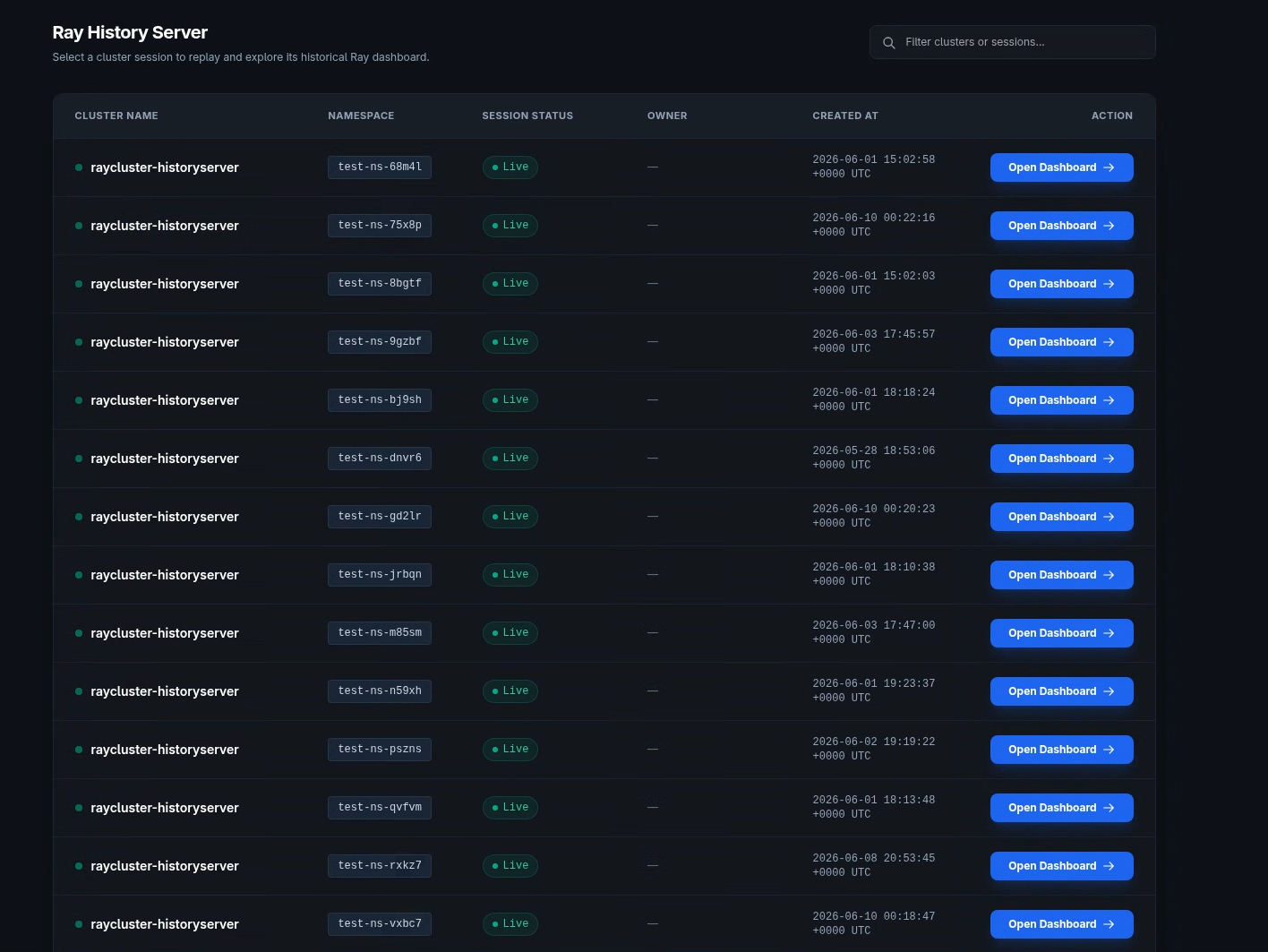
This page lists every stored cluster session with its name, namespace, status, and creation timestamp. Each row has an Open Dashboard button that switches the Ray dashboard to that session.
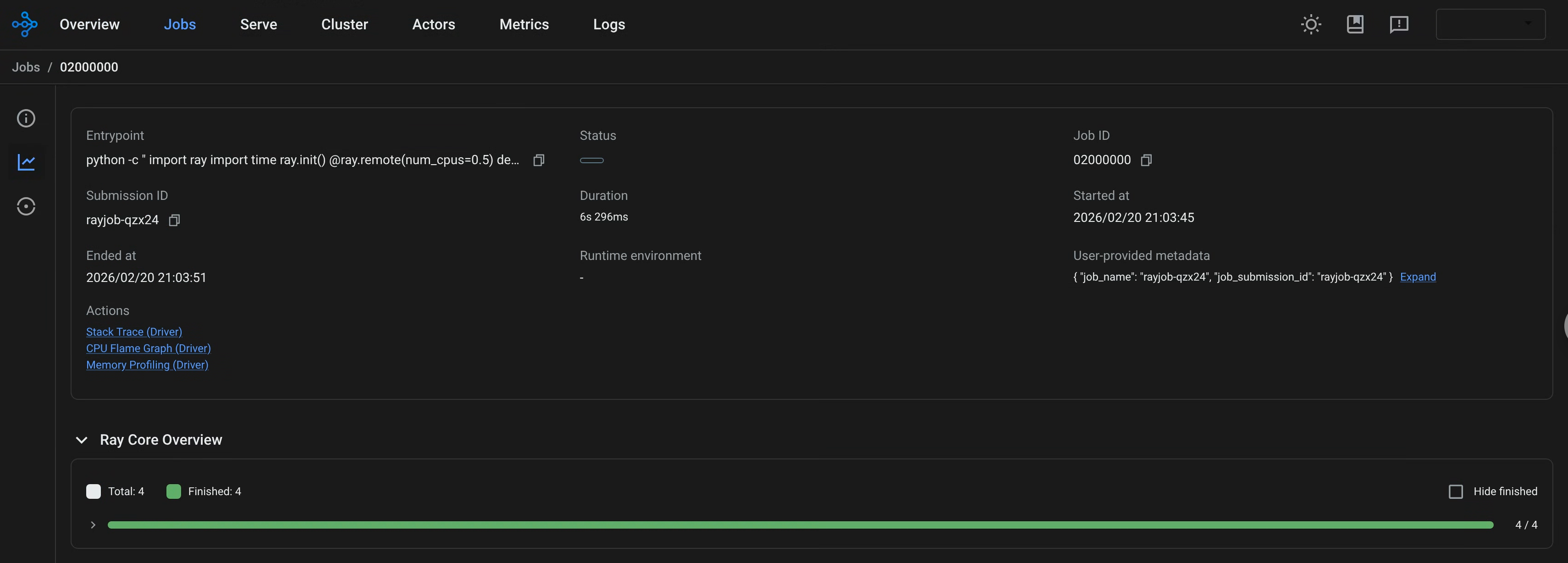
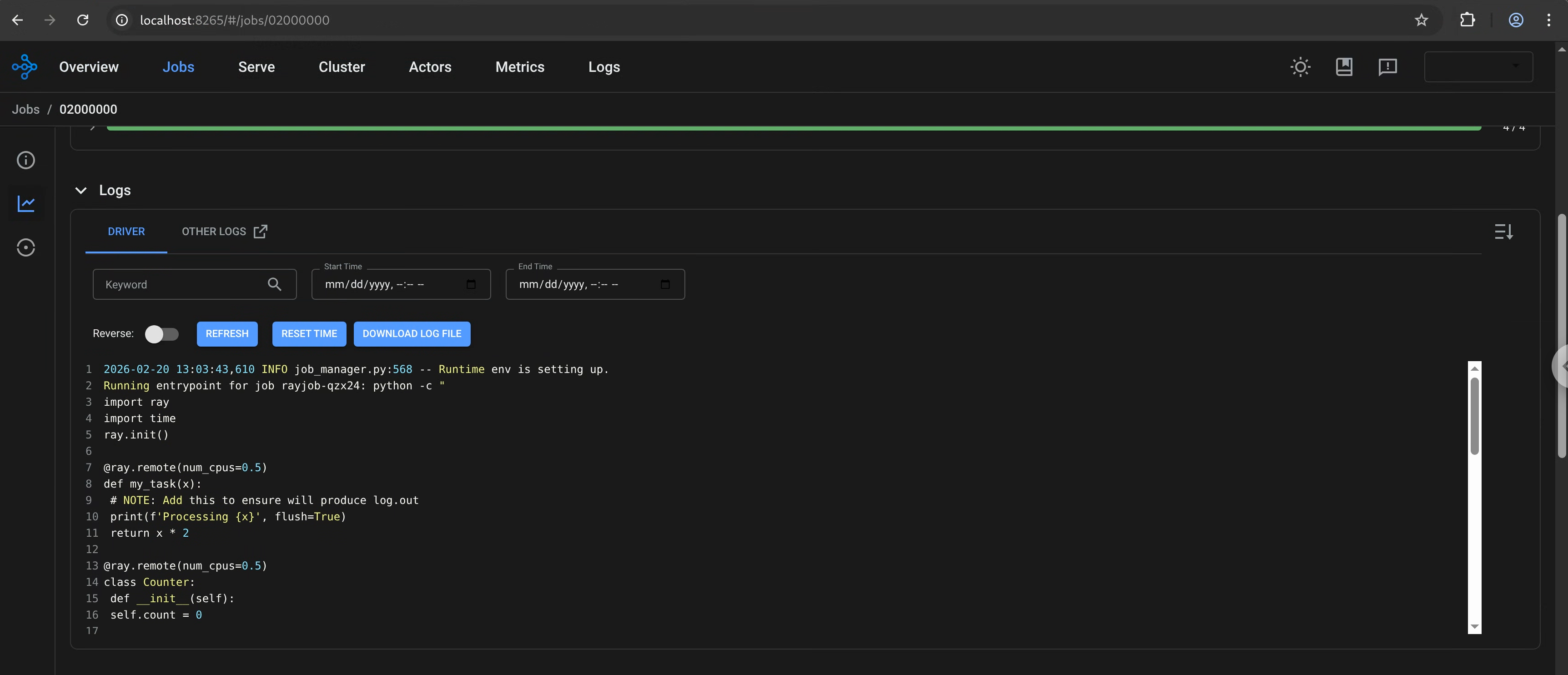
Ray job page using Ray History Server as a backend:
Data retention#
The Ray History Server doesn’t purge data or enforce a retention window, because retention requirements vary by deployment. To manage log expiration and control storage costs, configure object lifecycle policies with your cloud storage provider.
For Google Cloud Storage (GCS), see Object Lifecycle Management.