Resources#
With Ray, you can scale your applications from a laptop to a cluster without changing your code. Ray resources are key to this capability. They abstract away physical machines, so you express your computation in terms of resources while Ray manages scheduling and autoscaling based on resource requests.
A resource in Ray is a key-value pair where the key is a resource name and the value is a float quantity. For convenience, Ray natively supports the CPU, GPU, and memory resource types, which Ray calls pre-defined resources. Ray also supports custom resources.
Physical resources and logical resources#
Physical resources are the resources a machine physically has, such as physical CPUs and GPUs. Logical resources are virtual resources that a system defines.
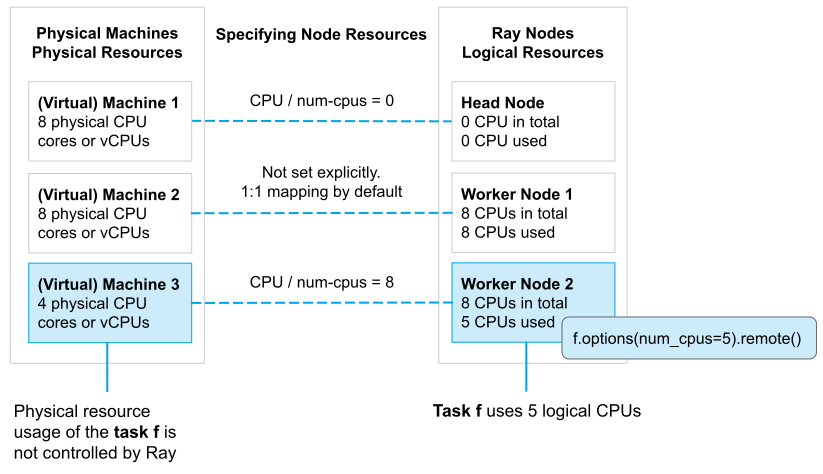
Ray resources are logical and don’t need a one-to-one mapping with physical resources. For example, you can start a Ray head node with zero logical CPUs by running ray start --head --num-cpus=0, even if the machine physically has eight. This setting signals the Ray scheduler not to schedule any tasks or actors that require logical CPU resources on the head node, mainly to reserve the head node for running Ray system processes. Ray mainly uses logical resources for admission control during scheduling.
Because resources are logical, the following implications apply:
Resource requirements of tasks or actors don’t limit actual physical resource usage. For example, Ray doesn’t prevent a
num_cpus=1task from launching multiple threads and using multiple physical CPUs. You’re responsible for making sure tasks or actors use no more resources than their resource requirements specify.Ray doesn’t provide CPU isolation for tasks or actors. For example, Ray doesn’t reserve a physical CPU exclusively and pin a
num_cpus=1task to it. Instead, Ray leaves scheduling and running the task to the operating system. If needed, use operating system APIs such assched_setaffinityto pin a task to a physical CPU.Ray does provide GPU isolation in the form of visible devices. It automatically sets the
CUDA_VISIBLE_DEVICESenvironment variable, which most machine learning frameworks respect for GPU assignment.
Note
If you set num_cpus on a task or actor through ray.remote() and task.options() or actor.options(), Ray sets the environment variable OMP_NUM_THREADS=<num_cpus>. If you don’t specify num_cpus, Ray sets OMP_NUM_THREADS=1 to avoid performance degradation with many workers. For background, see issue #6998. To override anything Ray sets by default, set OMP_NUM_THREADS explicitly. NumPy, PyTorch, and TensorFlow commonly use OMP_NUM_THREADS to perform multi-threaded linear algebra. In a multi-worker setting, you want one thread per worker instead of many threads per worker to avoid contention. Some other libraries might have their own way to configure parallelism. For example, if you’re using OpenCV, set the number of threads manually with cv2.setNumThreads(num_threads). To disable multi-threading, set the number of threads to 0.
Physical resources versus logical resources#
Custom resources#
You can specify custom resources for a Ray node and reference them to control scheduling for your tasks or actors.
Use custom resources when you need to manage scheduling with numeric values. For simple label-based scheduling, use labels instead. See Use labels to control scheduling.
Specifying node resources#
By default, Ray nodes start with pre-defined CPU, GPU, and memory resources. Ray sets the quantities of these logical resources on each node to the physical quantities it detects automatically. By default, Ray configures these resources with the following rules:
Number of logical CPUs: Ray sets
num_cpusto the number of CPUs of the machine or container.Number of logical GPUs: Ray sets
num_gpusto the number of GPUs of the machine or container.Memory: Ray sets
memoryto 70% of “available memory” when the Ray runtime starts.Object store memory: Ray sets
object_store_memoryto 30% of “available memory” when the Ray runtime starts. Object store memory isn’t a logical resource, and you can’t use it for scheduling.
Warning
You cannot dynamically update the resource capacities of a node after Ray starts on that node.
You can override these defaults by manually specifying the quantities of pre-defined resources and adding custom resources. How you do that depends on how you start the Ray cluster:
If you use ray.init() to start a single-node Ray cluster, specify node resources manually as follows:
# This will start a Ray node with 3 logical cpus, 4 logical gpus,
# 1 special_hardware resource and 1 custom_label resource.
ray.init(num_cpus=3, num_gpus=4, resources={"special_hardware": 1, "custom_label": 1})
If you use ray start to start a Ray node, run the following command:
ray start --head --num-cpus=3 --num-gpus=4 --resources='{"special_hardware": 1, "custom_label": 1}'
If you use ray up to start a Ray cluster, set the resources field in the YAML file:
available_node_types:
  head:
    ...
    resources:
      CPU: 3
      GPU: 4
      special_hardware: 1
      custom_label: 1
If you use KubeRay to start a Ray cluster, set the rayStartParams field in the YAML file:
headGroupSpec:
  rayStartParams:
    num-cpus: "3"
    num-gpus: "4"
    resources: '"{\"special_hardware\": 1, \"custom_label\": 1}"'
Specifying task or actor resource requirements#
You can specify the logical resource requirements of a task or actor, such as CPU, GPU, and custom resources. A task or actor runs on a node only if the node has enough of the required logical resources available to execute it.
By default, Ray tasks use one logical CPU resource, and Ray actors use one logical CPU for scheduling and zero logical CPUs for running. As a result, by default, actors can’t get scheduled on a zero-CPU node, but an infinite number of them can run on any non-zero-CPU node. The default resource requirements for actors exist for historical reasons. To avoid surprises, always set num_cpus explicitly for actors. If you specify resources explicitly, Ray requires them both at schedule time and at execution time.
You can also explicitly specify a task’s or actor’s logical resource requirements (for example, one task may require a GPU) instead of using default ones via ray.remote() and task.options()/actor.options().
# Specify the default resource requirements for this remote function.
@ray.remote(num_cpus=2, num_gpus=2, resources={"special_hardware": 1})
def func():
    return 1


# You can override the default resource requirements.
func.options(num_cpus=3, num_gpus=1, resources={"special_hardware": 0}).remote()


@ray.remote(num_cpus=0, num_gpus=1)
class Actor:
    pass


# You can override the default resource requirements for actors as well.
actor = Actor.options(num_cpus=1, num_gpus=0).remote()
// Specify required resources.
Ray.task(MyRayApp::myFunction).setResource("CPU", 1.0).setResource("GPU", 1.0).setResource("special_hardware", 1.0).remote();

Ray.actor(Counter::new).setResource("CPU", 2.0).setResource("GPU", 1.0).remote();
// Specify required resources.
ray::Task(MyFunction).SetResource("CPU", 1.0).SetResource("GPU", 1.0).SetResource("special_hardware", 1.0).Remote();

ray::Actor(CreateCounter).SetResource("CPU", 2.0).SetResource("GPU", 1.0).Remote();
Task and actor resource requirements affect Ray’s scheduling concurrency. The sum of the logical resource requirements of all concurrently executing tasks and actors on a node can’t exceed the node’s total logical resources. You can use this property to limit the number of concurrently running tasks or actors to avoid issues such as OOM.
Fractional resource requirements#
Ray supports fractional resource requirements. For example, if your task or actor is I/O-bound and has low CPU usage, you can specify a fractional CPU with num_cpus=0.5 or even zero CPUs with num_cpus=0. The precision of a fractional resource requirement is 0.0001, so avoid specifying a double beyond that precision.
@ray.remote(num_cpus=0.5)
def io_bound_task():
    import time

    time.sleep(1)
    return 2


io_bound_task.remote()


@ray.remote(num_gpus=0.5)
class IOActor:
    def ping(self):
        import os

        print(f"CUDA_VISIBLE_DEVICES: {os.environ['CUDA_VISIBLE_DEVICES']}")


# Two actors can share the same GPU.
io_actor1 = IOActor.remote()
io_actor2 = IOActor.remote()
ray.get(io_actor1.ping.remote())
ray.get(io_actor2.ping.remote())
# Output:
# (IOActor pid=96328) CUDA_VISIBLE_DEVICES: 1
# (IOActor pid=96329) CUDA_VISIBLE_DEVICES: 1
Note
GPU resource requirements greater than 1 must be whole numbers. For example, num_gpus=1.5 is invalid. Some accelerators are stricter: neuron_cores requirements must always be whole numbers, and TPU requirements must be 1, 2, 4, or 8.
Tip
Besides resource requirements, you can specify a runtime environment for a task or actor to run in. A runtime environment can include Python packages, local files, environment variables, and more. See Runtime environments.